
A small, useful worksheet
A free net worth
spreadsheet template.
Your assets, liabilities, and a history you can return to. Download an Excel workbook, copy the blank Google Sheets template, or keep simple CSV files. No email signup is required.
Google Sheets opens on Google’s website and requires a Google account to save your copy. The public master is view-only. Keep your completed copy private.
| Kind | Holding | Valuation date | Currency | Amount |
|---|---|---|---|---|
| Asset | Cash & savings | Your date | Your currency | 0 |
| Asset | Property | Your date | Your currency | 0 |
| Liability | Home loan | Your date | Your currency | 0 |
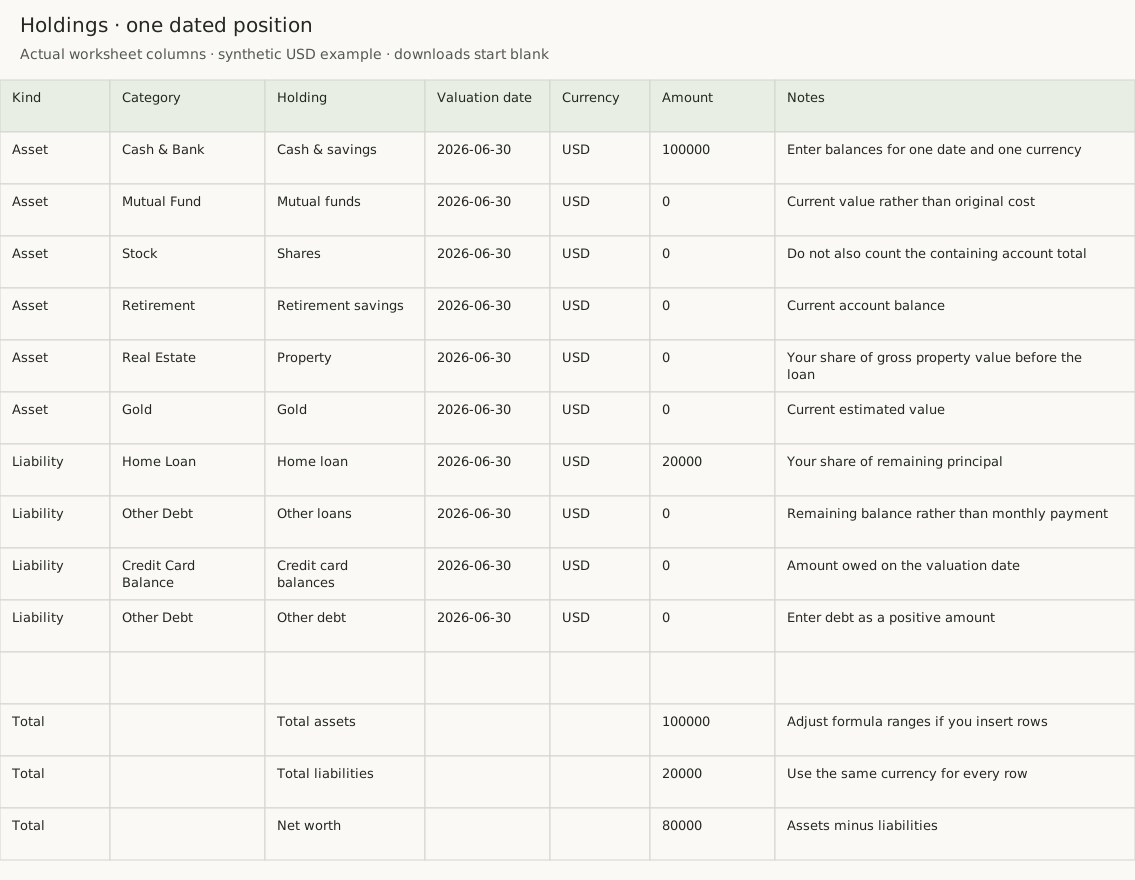
Holdings. One date, one currency.
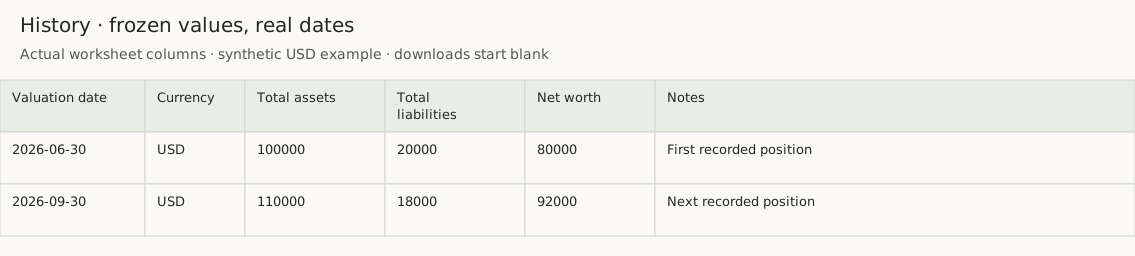
History. Keep the values you reviewed.
Try one checkpoint, then the next
These synthetic USD figures show the complete workflow. On 30 June, enter cash of 100,000 and a home loan of 20,000. Copy the totals into History as values. Save a dated copy before changing Holdings. On 30 September, enter cash of 110,000 and debt of 18,000, then add a new history row.
| Valuation date | Total assets | Total liabilities | Net worth |
|---|---|---|---|
| 30 June 2026 | 100,000 | 20,000 | 80,000 |
| 30 September 2026 | 110,000 | 18,000 | 92,000 |
The 12,000 increase consists of 10,000 more assets and 2,000 less debt. It is not an investment-return calculation. The June row must stay at 80,000 after you change Holdings. Leave unrecorded months blank.
What the download includes
The Excel workbook has Read me, Holdings, History, and Liquidity sheets. Holdings starts with 40 input rows in a native Excel table. It includes optional vehicle, business, bond, FD, EPF, PPF, NPS, and vested-share labels. Rename or leave unused rows blank. Whole-column formulas calculate assets, liabilities, and net worth beside the inputs.
History starts with twelve checkpoint rows in a second table and a date-axis net worth chart. Blue cells identify inputs. Dates use year-month-day formatting, and amounts show three decimal places. No dates or financial examples are prefilled.
The Excel download is template version 2026-10-15.1. Its Read me includes an optional link back to this workflow. The separate Google Sheets master has the same four-sheet calculation layout; its source note may differ. The CSV files keep the simpler fixed-row layout shown in the previews above. There are no macros, scripts, trackers, external data connections, or bank connections. These files are personal balance sheet templates, not an Exitmargin backup or an app import format.
How to use the template in Excel
- Open the XLSX workbook and read the instructions. Use one valuation date and one currency for the holdings.
- Enter checked current values and remaining debt in the blue input cells. Keep debt positive. Choose Asset or Liability in Kind. Blank means not entered; enter 0 for a confirmed zero. Record sources and estimates in Notes.
- Add a holding inside the table, or press Tab from its last cell to add a table row. Check that the table expands. Totals at J2:J4 use whole-column formulas such as
=SUMIF(A:A,"Asset",F:F), so you do not need to edit fixed SUM ranges. - Copy checked asset and debt totals from J2 and J3 into History as values, with a real date and the same currency. Net worth remains blank until both totals are entered. Keep dates in ascending order.
- Add later checkpoints inside the History table. Check its calculated column and extend the chart data range beyond its twelve starting rows when needed. Save a dated copy before changing Holdings. Keep completed files private.
An optional liquid net worth check
Liquidity is a separate scenario. Enter eligible cash, accessible bank savings, and listed investments under a policy you state. Exclude property, vehicles, private business interests, and restricted retirement balances. Record your valuation date, reporting currency, and any tax or sale-cost adjustments.
The sheet subtracts all liabilities, including long-term loans, from eligible liquid assets. It does not change Holdings or History. Blank means not entered; enter 0 for confirmed zero debt. A negative result does not mean all debts are due now. Read the liquid net worth method and limits.
Using a spreadsheet app such as Google Sheets
The workbook uses Excel tables, calculated columns, and cell-range chart references. A Google Sheets import of the earlier four-sheet workbook on 15 October 2026 calculated 100.125 − 20 = 80.125 in History and plotted two dated checkpoints. A Holdings check also included a row added below the starting table. Liquidity formulas were checked with blank, zero, and negative-result scenarios. Version 2026-10-15.1 adds a source link and version note; its Google Sheets import has not been rechecked. Desktop Excel operation and chart expansion remain untested.
The separate Google Sheets master includes these four sheets. CSV files use comma-separated columns and ordinary SUM, IF, and OR formulas. Adjust their fixed ranges if you add rows. Check that formulas calculate rather than display as text. Locale settings can change formula separators and number parsing.
A cloud spreadsheet uses its provider’s storage and sharing settings; it is not the same as an offline file. Keep completed files private and check the totals after import.
Keep a history, not a live copy of today
Do not link old history rows to the current Holdings total. Copy totals as values so later edits do not rewrite earlier positions. Leave missed months blank. Currency labels do not convert amounts, and rows in different currencies are not directly comparable.
For the method, read how to track net worth over time and what counts as an asset or liability. Use the private calculator for a quick one-date total.
Keep your spreadsheet. Add a journal.
Use the sheet for flexible calculations and notes. Use Exitmargin for dated balance checkpoints and comparisons. Read the spreadsheet and journal workflow.
The example uses synthetic records. It does not read or change your journal.